Assign logos to teams
In MyTournament.info, logos can be assigned to teams.
This logo is then shown with the team on the visitor pages.
This gives teams a recognisable appearance and makes the tournament more visually appealing
for players, supporters and visitors.
Team logo management takes place on the teams page.
When creating or editing a team,
the application displays a dropdown list with available logos.
The correct logo can easily be assigned to the team from this list.
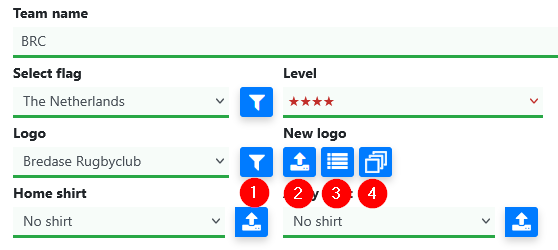
The red numbers in the image below correspond to the explanation in this blog.
1Manage the active logo list
Next to the dropdown list are four buttons for managing logos.
These buttons allow existing logos to be added to the active selection,
removed from it or even deleted.
Deletion is only possible when the logo is no longer linked anywhere else.
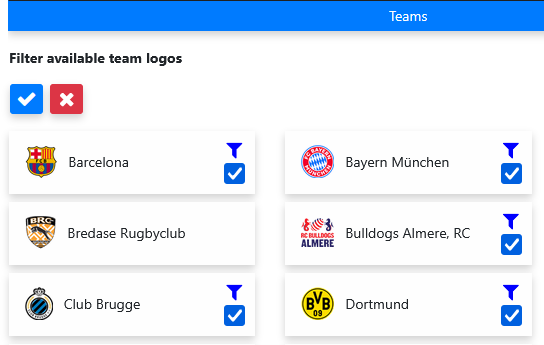
By checking or unchecking the box below the filter icon,
it is determined whether a logo appears or remains in the active selection.
This maintenance option prevents the logo list from becoming too large over time.
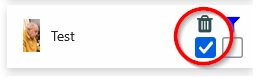
When a trash icon is shown next to a logo, it means that the logo is not linked anywhere.
In that case, the logo can be removed completely.
2Upload a new logo
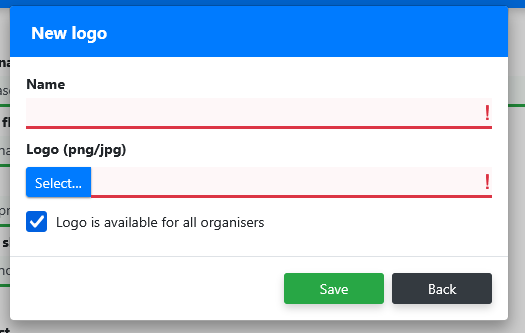
With the second button, an organiser can upload a new logo.
First, the name of the club or association is entered as it should appear in the dropdown list.
Next, the image file containing the logo is selected.
3Standard logos available by sport and country
For some sports, within MyTournament.info, the logos in the tournament country are already available by default.
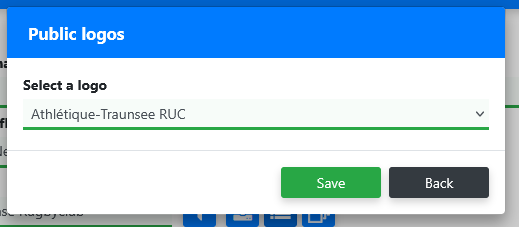
The overview below shows for which combinations of sport and country
standard logos are available.
| Sport |
Country |
| Rugby |
Austria |
| Rugby |
Belgium |
| Rugby |
Germany |
| Rugby |
Luxembourg |
| Rugby |
Switzerland |
| Rugby |
The Netherlands |
4Search shared logos
The MyTournament.info database contains tens of thousands of logos that have been uploaded
by organisers over the years. When an organiser has indicated that a logo may be shared,
it can also be found and used by other organisers.
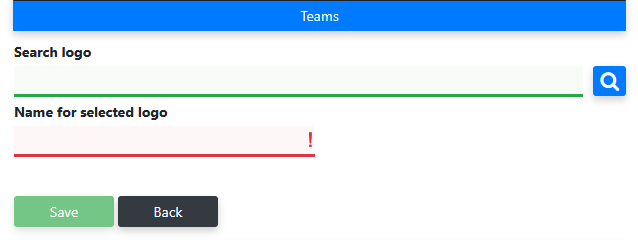
In this screen, you can search by name. First, the search is performed within the same sport.
After that, the full database can also be searched.
When the mouse hovers over a logo block, the block takes on the colour of the visitor page.
This makes it possible to visually determine which logo fits best.
Drag logos to teams
In the team overview, on larger screens, a button is visible on both sides of the list.
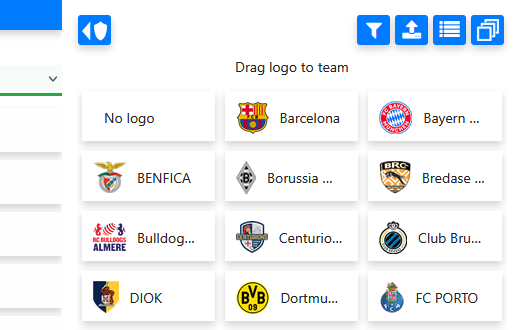
On the right side, an overview can be opened of the logos that are in the active selection.
From this overview, a logo can be dragged to a team in the list.
As soon as the logo is dropped onto the team, it is assigned to that team.
This screen also contains the previously discussed buttons for maintaining and adding logos.
Drag flags to teams
A similar button is located on the left side of the team list.
From this panel, flags can be dragged to teams.
The active filter can also be adjusted here.
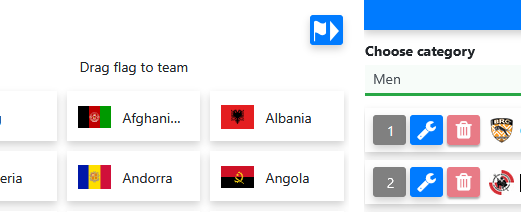
With these options, teams can be presented quickly and recognisably.
Organisers keep the logos organised, while visitors can recognise teams more easily
on the visitor pages.